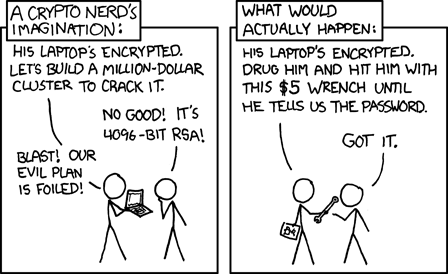
Did you know that you can use a Yubikey for 2-factor disk encryption on the Fedora Linux distribution? It probably won't save you from the situation in the comic. It does have benefits if you are around people you don't trust, such as shady roommates. Authentication that requires something you know (e.g. password) and something you have (e.g. Yubikey) can prevent someone from accessing your computer unless they somehow have both parts.
Contents:
Installation
Requirements: Fedora Linux installed the standard way with encryption enabled.
First, we need to install some dependencies!
Open your terminal and run:
sudo dnf install make pkg-config yubikey-personalization libyubikey-devel ykpers-devel iniparser-devel \
libarchive-devel cryptsetup-devel python-markdown systemd-devel keyutils-libs-devel
Download the latest release of mkinitcpio-ykfde from https://github.com/eworm-de/mkinitcpio-ykfde and unpack it in a folder somewhere.
Open your terminal in the newly extracted folder and run these two commands:
make MD=markdown_py
sudo make install dracut
Grabbing Yubikey & LUKS Info
Get your Yubikey's serial number:
sudo ykinfo -s
Save the serial number for later.
Open /etc/crypttab with a text editor and copy the mapping name of your encrypted volume (the text in the first column of the first row). The name should start with /dev/mapper.
Save the mapping name for later.
YKFDE Configuration
Now, open /etc/ykfde.conf with a text editor.
Add this to the bottom of the file and save it. You need to replace the placeholders with your mapping name and serial number.
[general]
device name = your_mapping_name_here

[your_yubikey_serial_number_here]
luks-slot = 1
Make sure to choose the appropriate LUKS slot (they are numbered from 0). Slot 1 should be safe for an automated Fedora encryption setup, since slot only slot 0 is used by default.
Add your Yubikey with your 2-factor password of choice:
sudo ykfde --ask-2nd-factor
Almost done!
Set up your Yubikey challenges to run at boot with these two commands:
sudo ykfde-cpio
sudo dracut -f
Bootloader Configuration
You will also need to update your GRUB bootloader configuration.
Open /etc/default/grub in a text editor and add this to it:
GRUB_EARLY_INITRD_LINUX_CUSTOM="ykfde-challenges.img"Finish updating your GRUB configuration.
If you have GRUB:
sudo grub-mkconfig -o /boot/grub/grub.cfgIf you have GRUB2:
sudo grub2-mkconfig -o /boot/grub2/grub.cfgOnce that is done, you are good to go!
When you reboot from now on, you will see the normal disk password screen. You have two options:
-
Type your 2-factor password, press enter, and press the button on your Yubikey.
-
If you wish to do so, you can just type your original disk password and press enter.
If you wish to make the Yubikey an absolute requirement, read on.
Yubikey-only Decryption (optional)
You have two options here:
-
Manual: Use the Yubikey Personalization Tool and some manual copy/pasting
-
Automated: Use this script I provided, which automatically kills LUKS slot 0.
To be frank, either of these options will likely result in your password floating around in your computer's RAM until you reboot. There is currently no proper, securely written software available for this purpose.
Manual
-
Open the Yubikey Personalization Tool and open the "Tools" tab. Select configuration slot 2 and HMAC-SHA1. Enter your password as the challenge and click "Perform." Copy the response for the next step.
- After adding your mapping name, run this command. When your password is requested, paste it in with ctrl+shift+v.
sudo cryptsetup luksKillSlot your_mapping_name_here 0
- After adding your mapping name, run this command. When your password is requested, paste it in with ctrl+shift+v.
Automated
- After adding your mapping name in line #10, run this in your terminal. It will ask you to enter your password, which will be sent to the Yubikey as a challenge. The response will then be piped into luksKillSlot, which will kill slot 0.
#Prompt for the password
echo "\nEnter your password:";
read -s;
#Convert the password to hex.
#Remove whitespace and newlines to make the string pure hex.
REPLY=$(echo -n $REPLY | od -A n -t x1 | sed 's/ *//g' | tr -d '\n');
#Pass the hex string to the Yubikey as an OTP challenge.
REPLY=$(ykman otp calculate 2 $REPLY);
#Display the Yubikey's OTP response
echo -n $REPLY | sudo cryptsetup luksKillSlot your_mapping_name_here 0 -d -;
#This probably does not work at all, but this attempts to overwrite
#the sensitive data in the variable and then de-allocate it.
REPLY="0000000000000000000000000000000000000000000000000000000000000000000";
unset REPLY;